StuffKeeper Pro
Things in Order.

StuffKeeper is Back. Rebuilt from Scratch!
After 5 years, your favorite organizer is reborn. We listened to all your feedback and completely remade the app with a modern look and powerful new features. Experience the next generation of StuffKeeper today!
What is
StuffKeeper?
StuffKeeper?
StuffKeeper is a fast catalog for your belongings. Add an item in just a few steps and find it in seconds.
Take a photo of an item, record where it is stored, and add a note or tag — so you no longer have to search through boxes, closets, and shelves.
The app is useful for keeping track of:
StuffKeeper does not require long forms or complicated spreadsheets. Add items quickly, then find them by name, note, tag, or storage location. A photo helps you recognize the right item at a glance.
It also acts as a simple extension of your memory: you do not have to keep track of where everything is — the information is always at hand.
The free version is enough for basic needs. Advanced features are available with a Premium subscription.
Take a photo of an item, record where it is stored, and add a note or tag — so you no longer have to search through boxes, closets, and shelves.
The app is useful for keeping track of:
- tools and spare parts;
- seasonal clothing;
- sports equipment;
- items stored in a pantry, garage, or country house;
- boxes, collections, and other belongings.
StuffKeeper does not require long forms or complicated spreadsheets. Add items quickly, then find them by name, note, tag, or storage location. A photo helps you recognize the right item at a glance.
It also acts as a simple extension of your memory: you do not have to keep track of where everything is — the information is always at hand.
The free version is enough for basic needs. Advanced features are available with a Premium subscription.


Pack your things in your phone
and don't misplace them anymore
and don't misplace them anymore
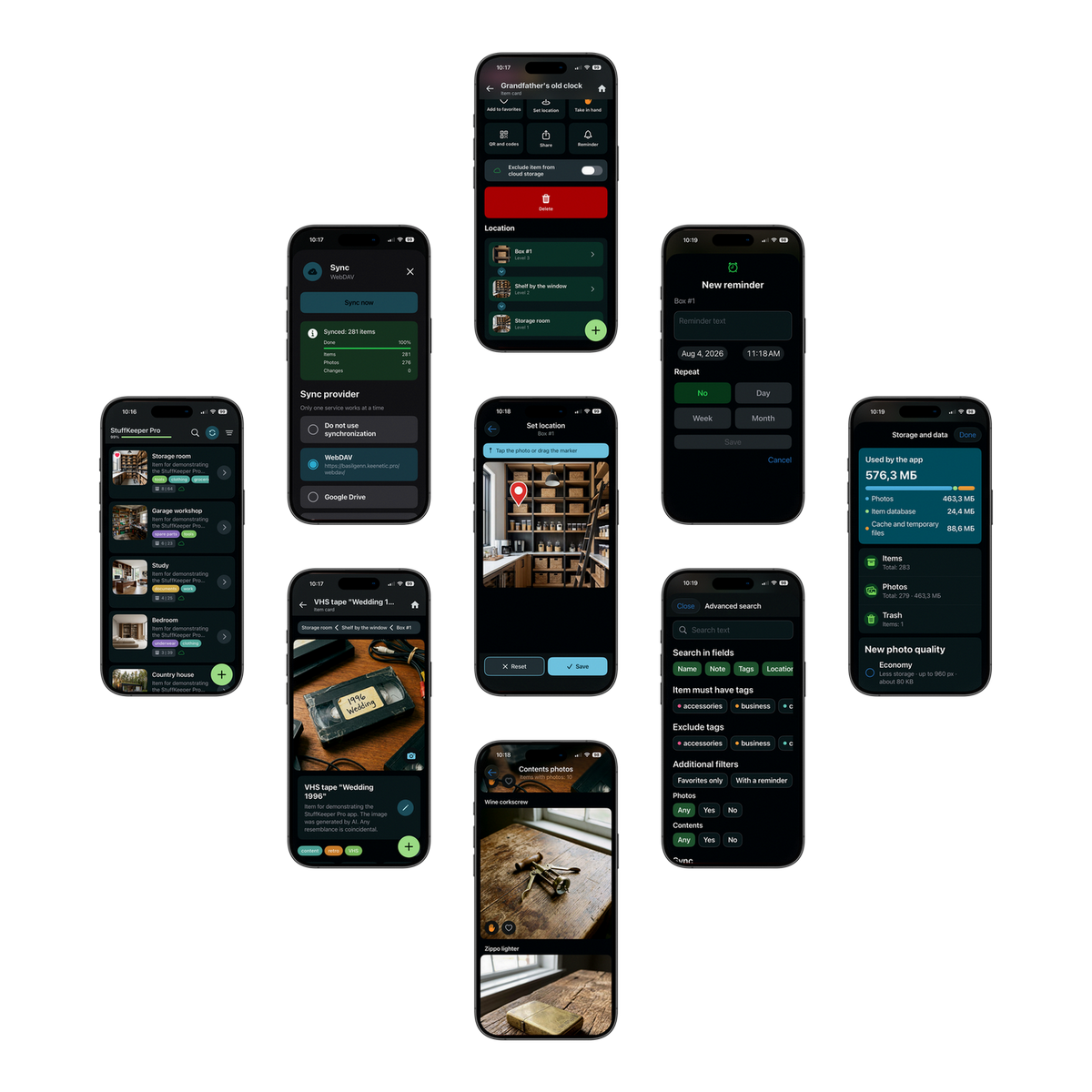
How it works
(one example of using the app)
(one example of using the app)
Property
First, add your locations. These can be an apartment, a country house, a garage, an office, etc.
Rooms
Divide your locations into areas. Add a living room, a walk-in closet, a bedroom, balcony, pantry, home office, etc.
Furniture! That's where we usually keep things.
Wardrobes, dressers, racks, shelves, etc. Feel free to add photos - it will help you with searching for items
Space and items on the shelves
It's often boxes or packages. Don't forget to add photos and descriptions, so that later you can so you can easily find your things later
And finally, the item!
Take a clear photo, so that later you know what you're looking for exactly. Give it a clear name and add details in the description, for example: a tool, a piece of clothing, a part, etc.
And the most important thing!
Easily find the things you need using the convenient StuffKeeper search
The free Standard version is enough for most needs. But if you want more…


…a yearly Premium subscription costs about the same as a single movie ticket.
Your data is stored on your device and—if synchronization is enabled—in your provider's cloud (e.g., Google). Data is transmitted in encrypted form. StuffKeeper does not have its own data storage servers.
Press and hold the colored main (+) button to open a menu with various ways to add new items, then select the one you need. A single short press on the (+) button adds a new item by starting with a photo, as this is the most common method.
A new item is added to the location currently open on your screen. If you are viewing an item card, the new item will be placed inside it. If you have an item's contents list open, the new item will be added to that specific list.
While viewing a list, swipe right on an item to "take in hand." This pins it to a slot at the bottom of the screen. Next, navigate to your desired storage location and tap "Place here." The item, along with all its contents, will be moved there. This feature makes it easy to relocate entire boxes or even cabinets.
It is a set of rules for working with files on a remote server over the Internet. This technology is supported by some home routers and cloud providers. You can also set up a WebDAV server on your own PC by asking your favorite AI: "How do I install WebDAV on my PC?"
This is only possible if Google Drive synchronization was enabled and fully completed in the old app.
Steps to transfer:
Steps to transfer:
- Open Google Drive (via browser or the app).
- Find the StuffKeeperSyncData folder and download it as a ZIP archive.
- Save this ZIP file to your device (for example, to the Downloads folder or Files app).
- Open the new StuffKeeper app.
- In the menu, select: "Migrate from old version" → "Load ZIP file".
- Select the downloaded archive. The data will be loaded into your current workspace.
To do this, use different spaces and link them to separate cloud services.
Steps to configure:
Steps to configure:
- Tap the StuffKeeper Pro logo in the app header or select "Space" from the menu.
- Add a new space.
- Set up synchronization with a separate cloud account (personal, family, or work-related).
Your feedback and suggestions are very important to us.
Get started now for free
Manage cookies
Cookie Settings
Cookies necessary for the correct operation of the site are always enabled.
Other cookies are configurable.
Other cookies are configurable.